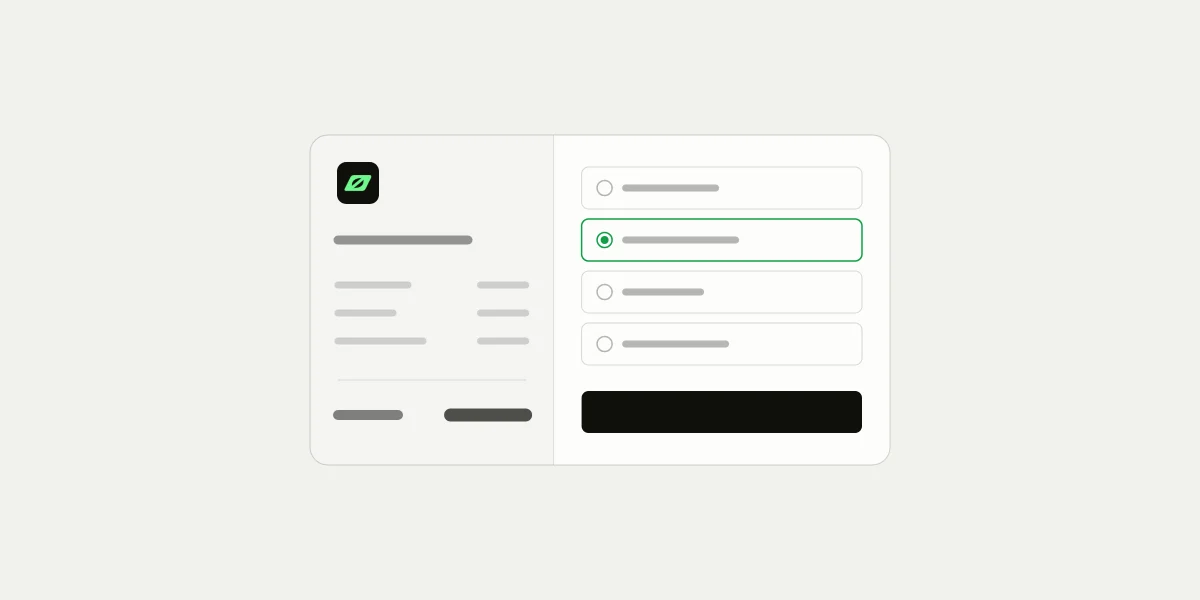
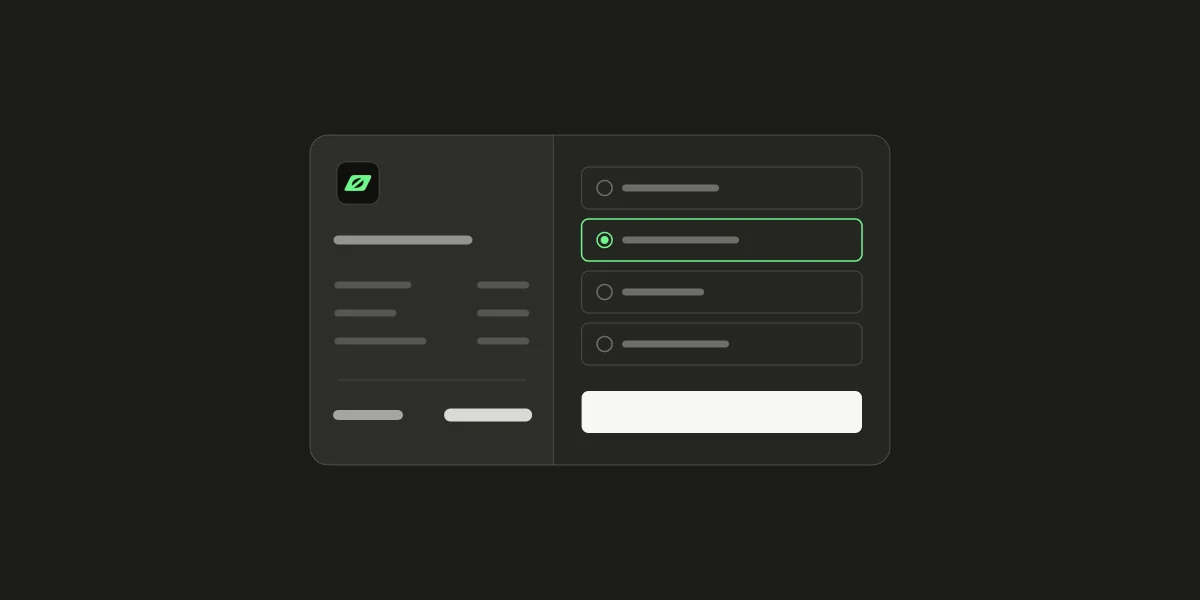
We've redesigned 402pay's hosted checkout, the page every payment link and API payment opens. It now separates what the customer is paying for from how they pay: the order and its total on one side, and a single list of payment methods on the other. Card payments now offer a choice ranked by cost and speed.
Nothing changes in your integration. Links, the API, and webhooks work exactly as before, and the new page reads the same settings. This post walks through what customers see now and what it means for the businesses behind the page.
What was there before
The previous checkout was a single narrow card. The customer saw the item and the amount due, with the price, processing fee, and network fee behind an info icon. Below that were two choices, Crypto or Card, and for crypto, two dropdowns for the coin and the network.
It worked, but it hid the parts of the payment customers most want to check, the fees and the total, and it gave card payments a single route with no say in cost or speed. The redesign addresses both.
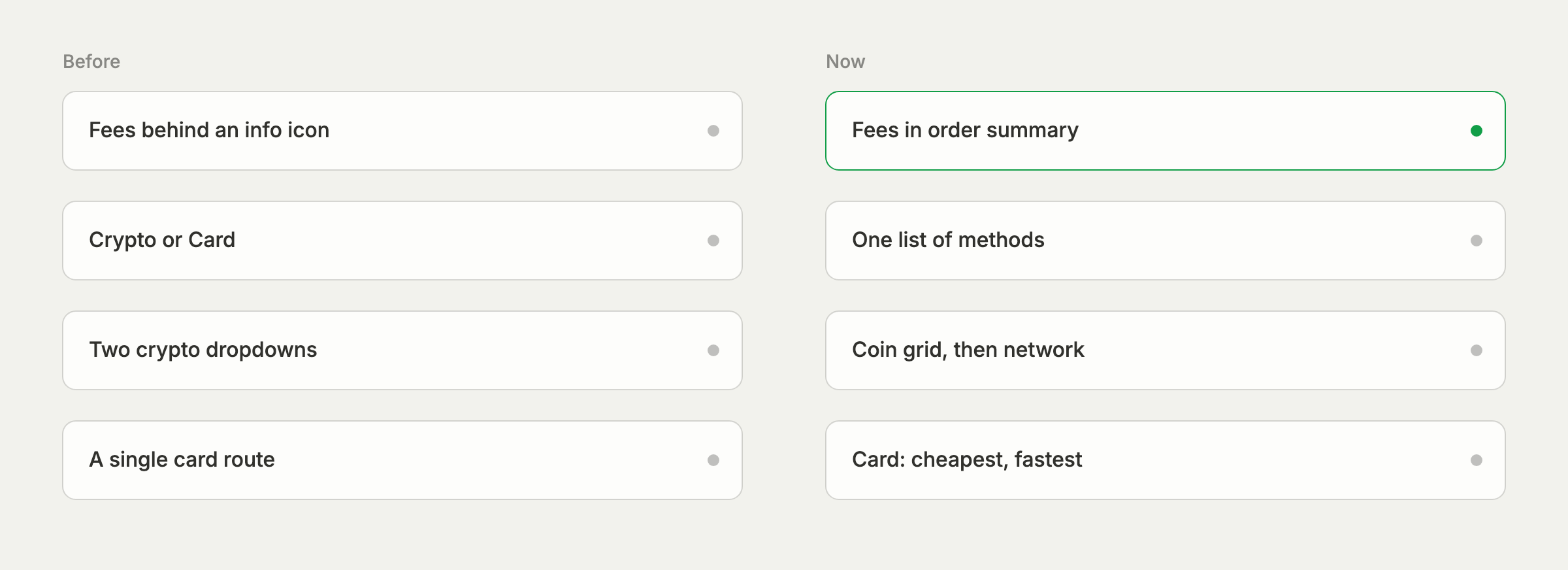
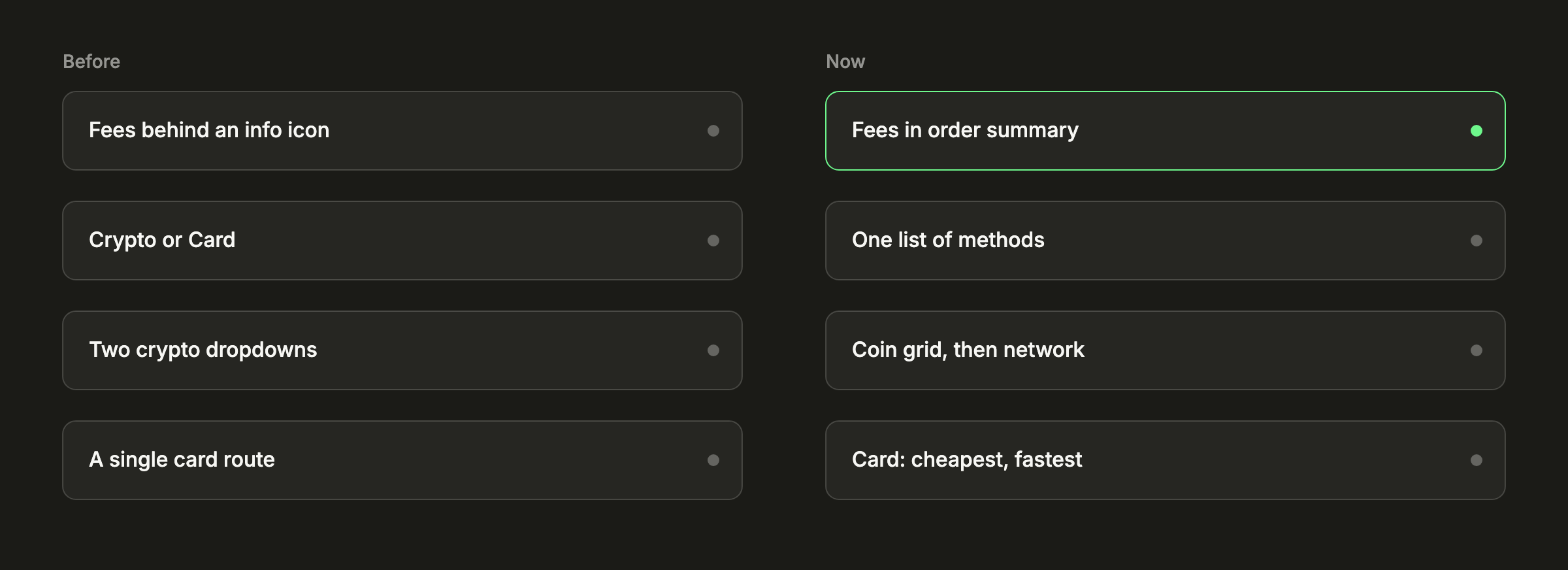
An order summary beside the form
On a wide screen, the page splits in two. The left side is the order: your business name, linked to your website, what the customer is buying and its description, your reference on an API payment, and the total in the price's currency. Under it, a breakdown builds up as the customer makes choices:
| Subtotal | Your price. |
|---|---|
| Processing fee | 402pay's fee, shown only when you've chosen to have customers pay it. |
| Third-party fee | A card provider's own fee, marked as an estimate when it is one. |
| Network fee | For crypto, an estimate of what the customer's wallet pays the network, shown once they choose a network. |
| Total due | What the customer pays in all. Once they choose a coin, the exact coin amount appears with it. |
On a phone, the summary sits at the top with the total in view and the breakdown folded under Payment details, and Continue to payment stays pinned to the bottom of the screen so the customer never has to scroll to find it. The footer links to support and has a language selector: checkout speaks English, Spanish, French, German, Portuguese, and Russian, and follows the device's light or dark setting.
One list of payment methods
The right side starts with the customer's email, labeled Email address. It's skipped when your server already passed the customer's email with an API payment, and required when you ask for emails in your checkout settings or the customer pays by card. Below it is the list of methods:
- Card, with the Visa, Mastercard, and American Express marks, when cards are on for your business and the amount is one a card provider can take.
- Crypto, with the marks of the coins you accept.
- Any payment method you've connected through an integration, under its own name and logo.
On devices that support them, Apple Pay or Google Pay appears as a button above the list. Choosing a method opens its options in place, and the summary on the left updates to match.
Card: the cheapest and the fastest
Behind a card payment, several card providers can usually take it, and they differ in what they charge, whether they ask for an ID check, and how quickly they deliver. Checkout now shows the customer up to two options, tagged Cheapest and Fastest, or one option tagged both when the same provider wins on each. Every option shows:
- Its total, including the provider's fee, marked as an estimate when it is one.
- Whether it needs an ID check: none, possibly, or required.
- How fast it is: instant, a few minutes, or a few hours.
Options are ranked on those three measures alone, never on who the provider is. A customer who has paid your business by card before sees the option they used last time first, tagged Used last time. An option that only works for customers who already hold an account with its provider asks first, and answering no moves the customer to the next best option. If the customer still can't finish on the provider's page, they can try the next provider from the waiting screen without starting over.
The customer sees what each way to pay will cost before they leave the page.
Card details are entered on the provider's secure page, never on checkout, and the payment still reaches your wallet as crypto. Our card-to-crypto explainer covers how that works.
Crypto: coin, then network
The dropdowns are gone. Crypto opens a grid of the coins you accept, out of the 8 402pay supports across 6 networks. A coin that you accept on only one network picks it automatically; otherwise a grid of networks opens under it, with a short explanation of what a network is for customers who aren't sure. Once a network is chosen, the summary shows an estimate of the network fee, paid by the customer's wallet when they send.
When the customer continues, checkout shows the payment itself:
- The exact amount and the network, a QR code, and a fresh address for this payment, each easy to copy.
- A countdown for the rate lock, 15 minutes unless you've changed it.
- Open in wallet app on phones, and Pay with browser wallet when one is installed.
- Once the transfer is seen, a count of its confirmations, a link to the transaction, and an estimate of the wait on slower networks.
The customer can close the page at any point and come back to the same link. A payment that arrives short asks for the rest at the same address, and a quote that runs out offers a new one.
What changes for businesses
Nothing you need to do. The redesign is live on every link and API payment, with no new settings and no change to the API or webhooks. The page reads what you've already set:
- The coins, networks, and cards you accept, in Settings → Payments. See choose which coins and networks checkout offers.
- Who pays 402pay's fee, which decides whether a processing fee row appears.
- Whether to ask for an email, the rate lock, and where customers go after paying, in checkout settings.
- Your business name, website, and support email, from your business profile.
Worth checking
With the total and every fee on screen, the name and description of each link are now the most prominent text a customer reads before paying. Make sure they say clearly what the customer is buying. It's also the simplest way to keep card disputes rare.
To see the new page as your customers do, open one of your payment links. Our Support guide walks through it step by step.
Common questions
- No. Payment links, the API and webhooks are unchanged, and the new checkout reads the settings you already have.
- It ranks the card providers that can accept the payment by total cost, ID check, and speed, and shows up to two: the cheapest and the fastest. A customer who has paid the business by card before sees the option they used last time first.
- Yes. The order summary lists the subtotal, any processing fee the business passes on, a card provider's fee, and an estimate of the network fee, then the total due.
- English, Spanish, French, German, Portuguese, and Russian. It also follows the device's light or dark setting.
See what 402pay can do for you.
Discover how 402pay helps your business accept any card and get paid in crypto, straight to a wallet you control.