Apple Pay and Google Pay are how a growing number of customers expect to pay on a phone: no card number to type, no expiry date to look up, and a fingerprint or a glance instead of a password. For a business that wants to be paid in crypto, accepting them has usually meant a card processor, a bank payout, and a conversion step of its own.
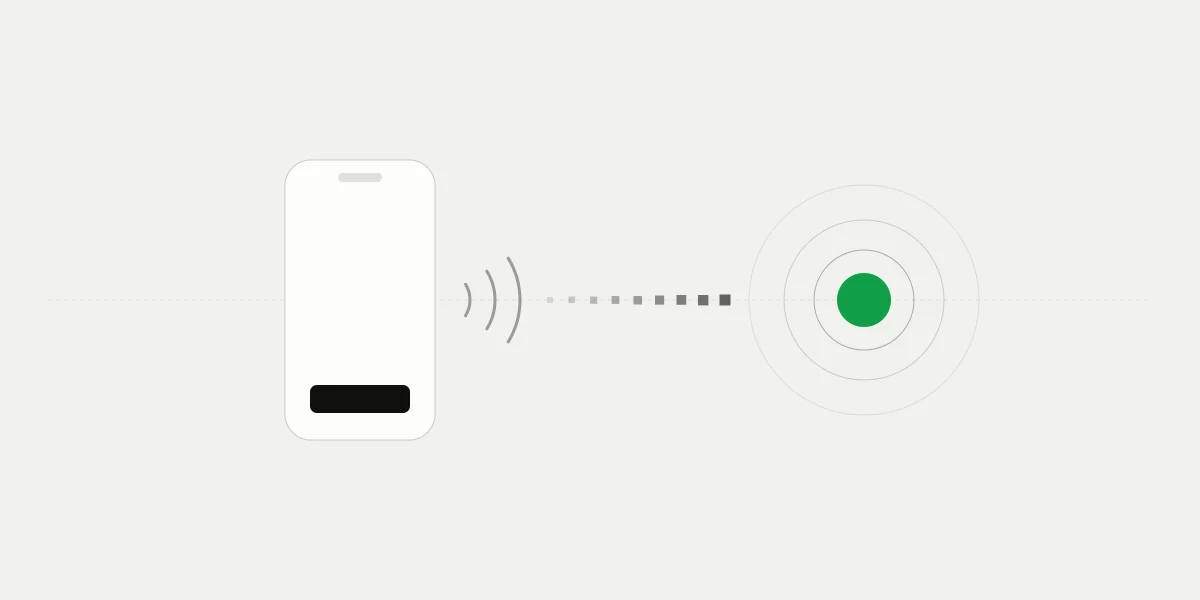
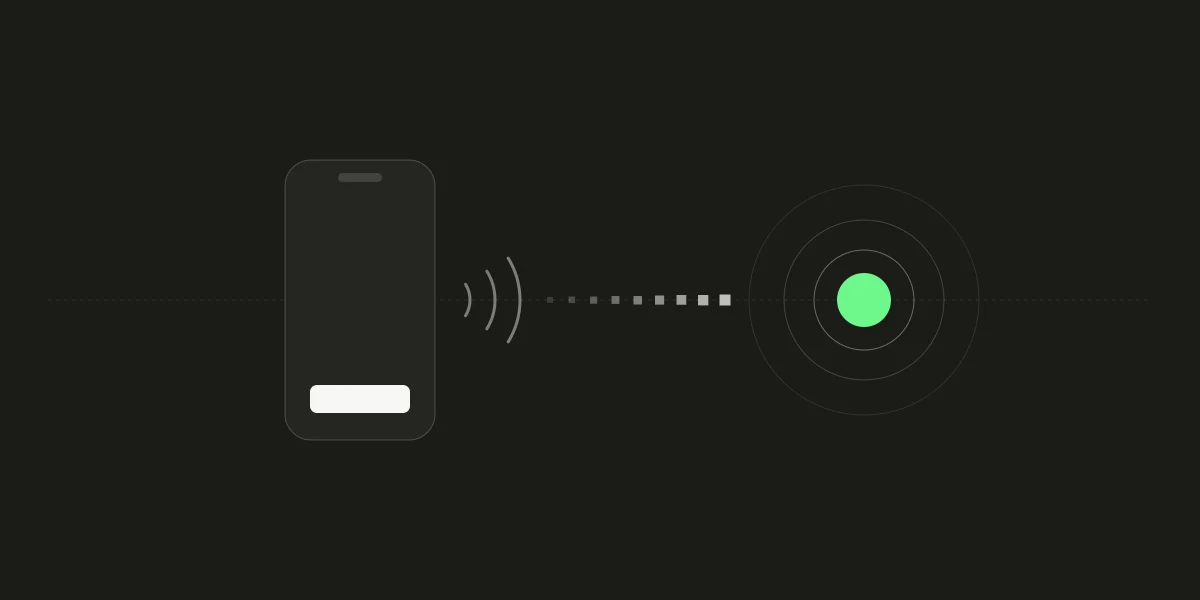
On 402pay, wallet payments are part of card payments. A customer taps Apple Pay or Google Pay at checkout, and the payment reaches your wallet as crypto, the same way every other 402pay payment does. This post covers what that looks like for the customer, what it takes to switch on, and how your records and integration treat it.
Why wallets matter at checkout
Most of the friction in a mobile card payment is typing. Sixteen digits, an expiry date, and a security code on a phone keyboard is where many customers give up or make a mistake. A digital wallet replaces all of that with a card the customer already saved and an approval they already know how to give.
Wallets also change what the merchant handles. With Apple Pay, the customer confirms with Face ID, Touch ID, or their passcode, and Apple doesn't store the original card number; a device-specific number is used instead[1]. Google Pay lets customers pay with cards saved to their Google Account and returns a payment token rather than the card details themselves[2]. Either way, fewer sensitive details are exposed in the payment than with a typed card number.
Turning it on
There is no separate wallet setup on 402pay. Apple Pay and Google Pay are offered on the secure card page checkout opens, not on your own site, so there are no buttons to add to your pages and nothing to register on your side.
- In the dashboard, go to Settings → Payments and turn on Card.
- Create a payment link, or create payments through the API, as you already do.
- Send customers to the checkout's URL. Cards, Apple Pay, and Google Pay appear beside crypto.
Which methods a particular customer sees depends on their location, the payment amount, and their device and browser: Apple Pay needs an Apple device that supports it, and Google Pay a browser and account set up for it. A customer who can't use either can still pay by card or with crypto in the same checkout. The help article on cards covers the switch, including what to do if cards aren't available for your business yet.
What the customer sees
At checkout the customer chooses Card and enters their email, which checkout asks for on every card payment so the receipt has somewhere to go. A secure payment page opens, where they see the final total, pick Apple Pay, Google Pay, or a card, approve it on their device, and complete any identity check their bank asks for.
Checkout waits on that page and follows the payment until it completes, then takes the customer to their receipt or your success page. On a phone, the card page opens in the same tab, so the whole flow stays in one place. Card details are entered on the card page and never reach 402pay, your dashboard, or the receipt.
What you receive
The customer is charged in the price's currency. Once the payment is approved, it is converted to crypto and delivered to a fresh address in your wallet, as a coin you accept on a network you accept, and confirmed on that network like any crypto payment. There is no balance held for you and no payout schedule.
| In the dashboard | The payment shows as Card, with no card number or brand. Its details show the coin, network, address, and deposit under You receive. |
|---|---|
| In the API | The payment records where the funds went: the coin, the network, the amount, and the transaction hash. |
| In your wallet | One deposit for the payment, whole. Fees go on your fee statement rather than coming out of it. |
Card payments, wallets included, cost 4% + 30¢ per transaction, all in. If you'd rather your customers cover it, the fee can be added to their total at checkout. Our cost comparison puts what card and crypto payments cost side by side, at every order size.
For your integration
An Apple Pay or Google Pay payment is a card payment as far as your code is concerned. It moves through the same statuses and sends the same webhooks as any other payment, so an integration that already handles crypto needs no changes. One rule matters more for cards than for crypto: an approval on the card page is not the end of the payment.


Fulfill on payment.succeeded, not on approval
The payment succeeds once the converted funds have been delivered and confirmed. Fulfill when your server receives and verifies payment.succeeded, then reads the payment to confirm its status and amount.
A payment that can't complete ends in payment.failed, with a failure_code that says why:
region_unsupported | Card payments aren't available in the customer's region. |
|---|---|
route_timeout | The payment didn't complete in time. |
After a decline, checkout offers the customer another try when one is available, or crypto instead. The card payments guide has the details, and our webhooks post covers verifying the events.
Disputes still exist
Being paid out in crypto changes where the money goes, not the customer's rights. A wallet payment is backed by a card, and a cardholder can still dispute it with their bank. If that happens, you'll be asked for evidence, as with any card payment.
- Describe what the customer is buying clearly, in words they'll recognize on their statement.
- Show your refund policy on your site before the customer pays.
- Add a support email to your business profile, so customers come to you before their bank.
Refunds, when you agree to one, are sent from your wallet, since the funds are already there. The refunds and disputes article walks through it.
The customer taps the way they always do. You're paid in crypto, in your own wallet.
Common questions
- Yes. On 402pay, Apple Pay and Google Pay are offered with card payments. The customer pays in their own currency, and the payment is converted to crypto and delivered to the business's own wallet.
- No. Turn on cards in Settings, under Payments. The wallets are offered on the secure card page checkout opens, so nothing needs adding to your own site.
- Which methods appear depends on the customer's location, the payment amount, and their device and browser. Apple Pay needs a supported Apple device. The customer can still pay by card or with crypto.
- The same as any card payment: 4% + 30¢, all in. It goes on the fee statement rather than coming out of the payment.
- Yes. A wallet payment is backed by a card, so the cardholder can dispute it with their bank, and the business is asked for evidence as with any card payment.
References
- [1]Apple Pay security and privacy overview. Apple Support.
- [2]Google Pay API overview. Google for Developers.
See what 402pay can do for you.
Discover how 402pay helps your business accept any card and get paid in crypto, straight to a wallet you control.